This may be a bit of an unconventional take.
With that out of the way, let’s get to creating a simple slider using the good old core/columns block.
Let’s add a 3 / 3 / 3 columns block:
- that has
stack on mobileunchecked - with the
inner columnblock having100% width
, and add three images from Sri Lanka’s natural beauty.
Wrap it within a group (with class name .columns-image-slider, and wrap that in another group with a an inner width of, say 720px.
Let us add a core HTML block, with the following content in it:
<style>
.columns-image-slider {
  position: relative;
  overflow: hidden;
}
.columns-image-slider .wp-block-columns {
  display: flex;
  flex-wrap: nowrap !important;
  gap: 0 !important;
  margin: 0;
  padding: 0;
  transition: transform 450ms ease;
  will-change: transform;
}
.columns-image-slider .wp-block-column {
  flex: 0 0 100%;
  width: 100%;
  max-width: 100%;
}
.columns-image-slider .wp-block-column > {
  padding: 0 8px;
 box-sizing: border-box;
}
.ts-slider-btn {
  position: absolute;
  top: 50%;
  transform: translateY(-%);
  z-index: 2;
  border: 1px solid currentColor;
  background: rgba(255,255,2559);
  color: inherit;
  padding: .5rem .75rem;
  border-radius: 999px;
  cursor: pointer;
}

.ts-slider-btn.prev{ left: 0; }
.ts-slider-btn.next{ right: 0; }
.ts-slider-dots{
  display: flex;
  gap: .5rem;
  justify-content: center;
  margin-top: .75rem;
}
.ts-slider-dot{
  width: 10px;
  height: 10px;
  border-radius: 999px;
  border: 1px solid currentColor;
  background: transparent;
  cursor: pointer;
  opacity: .7;
}

.ts-slider-dot[aria-current="true"]{
  background: currentColor;
  opacity: 1;
}
@media (prefers-reduced-motion: reduce){
  .columns-image-slider .wp-block-columns{ transition: none; }
}
</style>

<script>
(() => {
  const carousels = document.querySelectorAll('.columns-image-slider');

  carousels.forEach((root) => {
    const track = root.querySelector('.wp-block-columns');
    if (!track) return;

    const slides = Array.from(track.querySelectorAll('.wp-block-column'));
    if (slides.length <= 1) return;

    // Ensure initial state
    let index = 0;

    // Build controls
    const prev = document.createElement('button');
    prev.className = 'ts-slider-btn prev';
    prev.type = 'button';
    prev.setAttribute('aria-label', 'Previous testimonial');
    prev.textContent = '‹';

    const next = document.createElement('button');
    next.className = 'ts-slider-btn next';
    next.type = 'button';
    next.setAttribute('aria-label', 'Next testimonial');
    next.textContent = '›';

    root.appendChild(prev);
    root.appendChild(next);

    // Dots (insert after carousel so it sits below)
    const dotsWrap = document.createElement('div');
    dotsWrap.className = 'ts-slider-dots';

    const dots = slides.map((_, i) => {
      const dot = document.createElement('button');
      dot.className = 'ts-slider-dot';
      dot.type = 'button';
      dot.setAttribute('aria-label', `Go to testimonial ${i + 1}`);
      dot.addEventListener('click', () => goTo(i));
      dotsWrap.appendChild(dot);
      return dot;
    });

    root.insertAdjacentElement('afterend', dotsWrap);

    function update() {
      track.style.transform = `translateX(${-index * 100}%)`;
      dots.forEach((d, i) => d.setAttribute('aria-current', i === index ? 'true' : 'false'));
    }

    function goTo(i) {
      index = (i + slides.length) % slides.length;
      update();
    }

    prev.addEventListener('click', () => goTo(index - 1));
    next.addEventListener('click', () => goTo(index + 1));

    // Basic swipe support
    let startX = null;
    track.addEventListener('pointerdown', (e) => {
      startX = e.clientX;
      track.setPointerCapture?.(e.pointerId);
    });

    track.addEventListener('pointerup', (e) => {
      if (startX == null) return;
      const dx = e.clientX - startX;
      startX = null;
      if (Math.abs(dx) < 40) return;
      if (dx < 0) goTo(index + 1);
      else goTo(index - 1);
    });

    // Keyboard focus support
    root.setAttribute('tabindex', '0');
    root.addEventListener('keydown', (e) => {
      if (e.key === 'ArrowLeft') goTo(index - 1);
      if (e.key === 'ArrowRight') goTo(index + 1);
    });

    update();
  });
})();
</script>
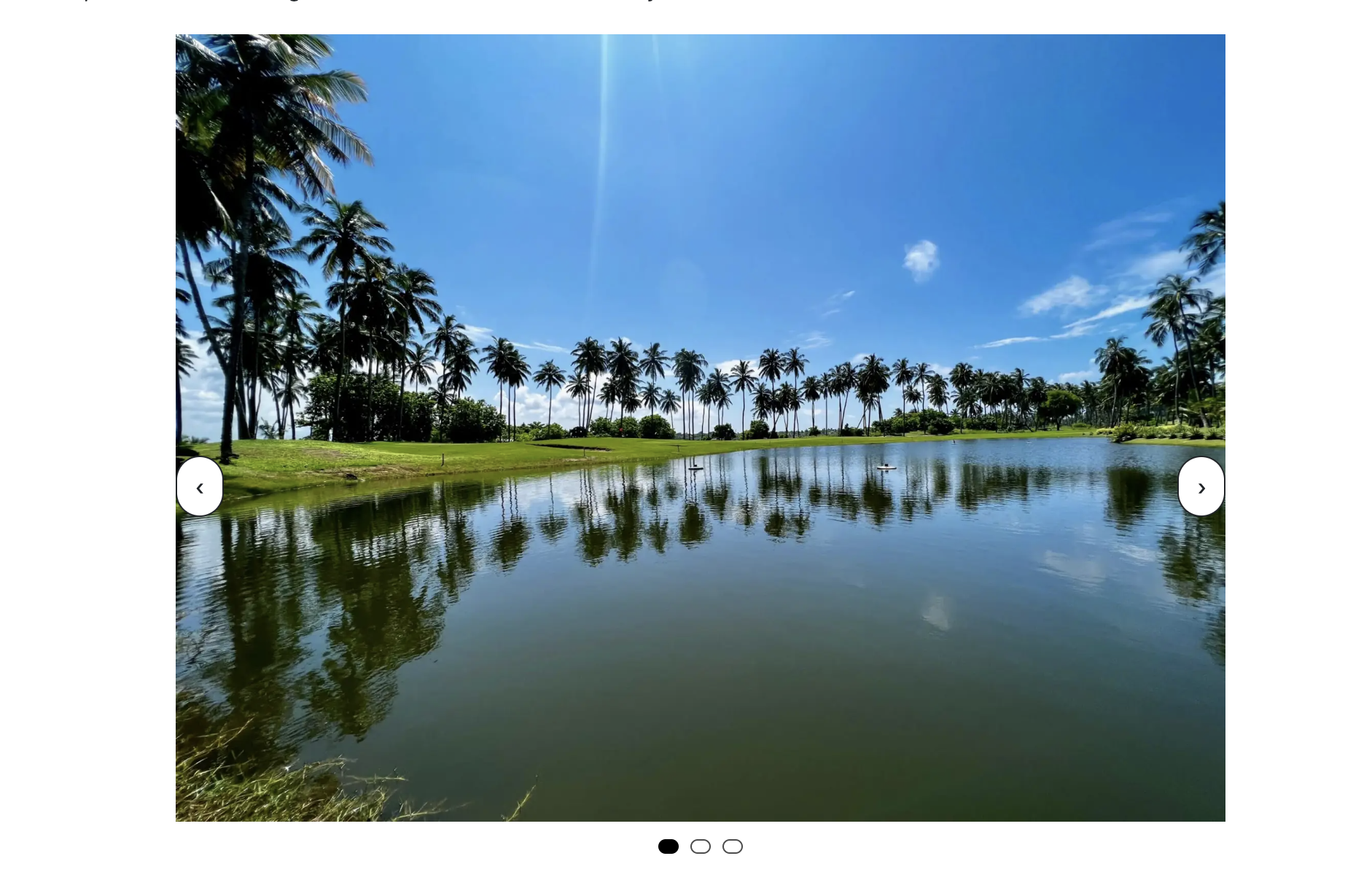
This is what you end up with:


Perhaps this is not a lot, but can be a simple yet effective way to put up testimonials without requiring a whole new plugin (oh!) or come up with experiments on the same page like this.
Thank you!