Tag: mac

  • My 2026 Development Workflow: Claude Code Desktop + Cursor

    My 2026 Development Workflow: Claude Code Desktop + Cursor

    I’ve been refining my development workflow over the past few months, and I’ve landed on a combination that feels incredibly productive: Claude Code from the Desktop app paired with Cursor for code review. Let me walk you through how I work.

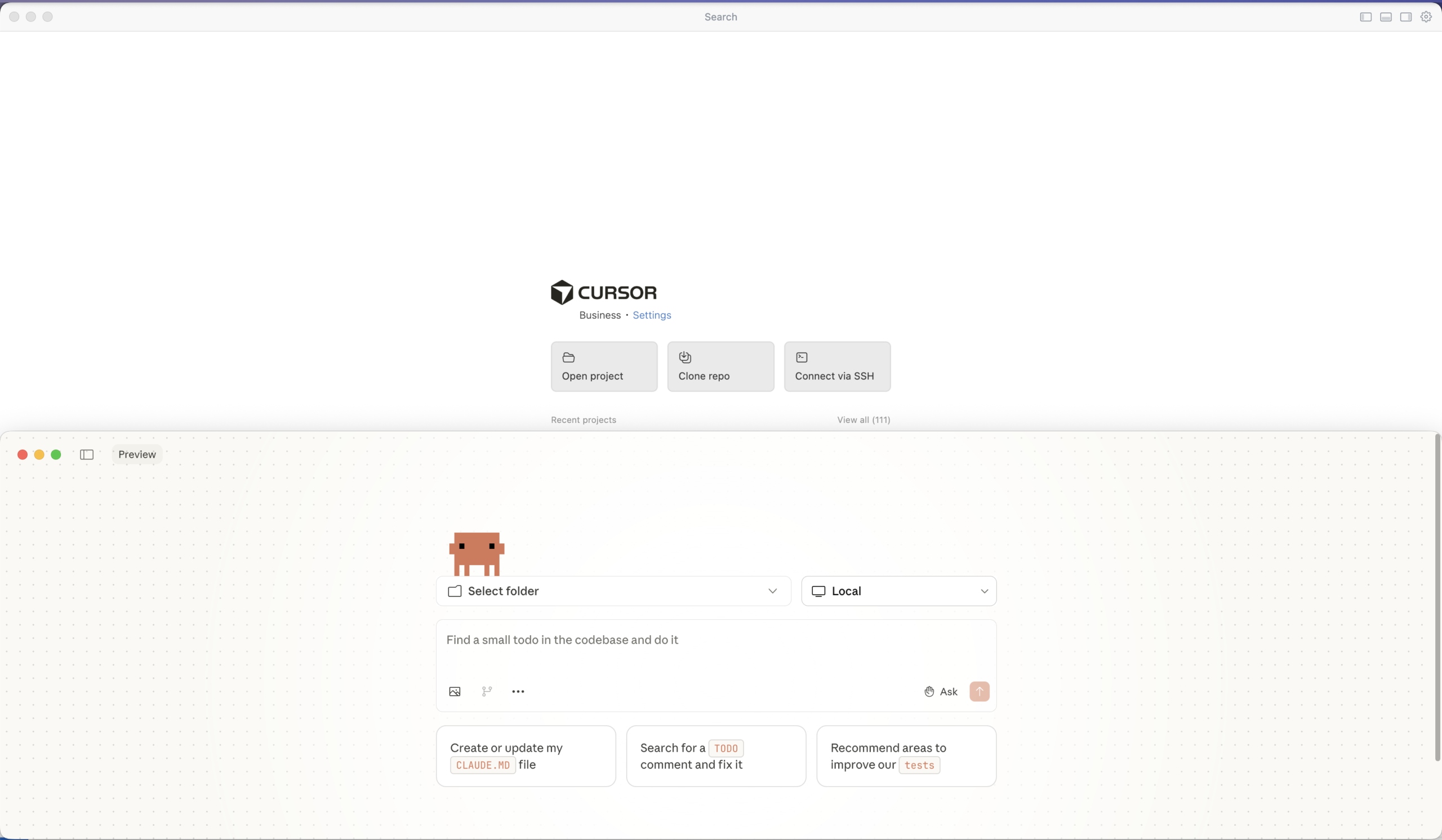
    Anthropic recently added a native “Code” tab directly inside the Claude Desktop app. It is a GUI for the engine that powers the CLI. One notable feature is its support for isolated Git worktrees. This means you can have a brainstorming conversation in one tab while a “Code” session runs in another, making changes in a separate worktree that won’t touch your main working directory until you’re ready to merge.

    Why not git worktree? My workflow is simple enough that I just work directly in my main/feature branch and review everything in Cursor before committing. But if you’re juggling multiple experimental features or want that extra safety net, the worktree support is there.

    Why not the CLI? I know many developers swear by the Claude Code CLI, but I’ve found the Desktop app suits my workflow better. There’s something about having a dedicated window for my AI conversations that keeps things organized. I can easily reference previous discussions, and the interface feels more natural for the kind of back-and-forth dialogue I have when working through complex problems.

    The Workflow

    Here’s how my typical development session looks:

    1. Brainstorm with Claude Desktop

    Before writing any code, I start by talking through the problem with Claude. I describe what I’m trying to accomplish, share relevant context about my project, and bounce ideas back and forth. This conversation helps me clarify my thinking and often surfaces edge cases I hadn’t considered. It’s like having a patient colleague who’s always available to rubber duck with.

    I then ask Claude to generate a prompt for Claude Code based on this discussion.

    2. Generate Code with Claude Code

    I open Claude Code in the Desktop app and paste in the prompt generated from step 1. It would have context about my project structure, the technologies I’m using, and any constraints I’m working with. Claude generates code, explains its reasoning, and I can ask follow-up questions right there in the conversation.

    3. Review in Cursor

    Once Claude has generated the code, I switch to Cursor. This is where I put on my reviewer hat. I don’t just blindly accept what the AI produces—I read through it carefully, understand what it’s doing, and verify it aligns with my project’s patterns and standards.

    Cursor’s diff view makes this review process smooth. I can see exactly what’s being added or changed, accept individual hunks, or modify the suggestions before committing.

    4. Test, Accept, and Commit

    After reviewing and testing, I accept the changes I’m happy with and commit them with meaningful commit messages.

    Why This Combination Works (for me)

    The separation of concerns is what makes this workflow powerful:

    • Claude Desktop for Brainstorming — This is where ideas take shape. I describe the problem I’m solving, share context about my project architecture, and have a back-and-forth conversation to explore different approaches. Claude helps me think through edge cases, consider alternative implementations, and refine my requirements before writing any code. By the end of this phase, I have a clear mental model and a well-crafted prompt ready for code generation.
    • Claude Code Desktop for Generation — With the refined prompt from brainstorming, I switch to Claude Code which has direct access to my codebase. It understands my project structure, existing patterns, and dependencies. The code it generates is contextually aware—it follows my naming conventions, integrates with existing modules, and respects the architectural decisions already in place. I can iterate here too, asking for adjustments or alternative approaches.
    • Cursor for Review — This is my quality gate. I examine every diff carefully, understanding not just what changed but why. Cursor’s interface makes it easy to accept good changes, reject problematic ones, and make surgical edits where needed. This deliberate review process ensures I never ship code I don’t understand. It’s also a learning opportunity—I often discover new patterns or techniques by studying what the AI produced.

    This two-step process forces me to slow down and actually review what the AI produces. It’s easy to fall into the trap of accepting AI-generated code without understanding it. By deliberately switching tools for the review phase, I create a mental checkpoint that keeps me engaged with the code.

    Tips for This Workflow

    1. Be specific with Claude — The better your prompts, the less cleanup you’ll need in Cursor
    2. Review as much as possible — Don’t let the convenience of AI make you lazy about code review
    3. Commit incrementally — Small, atomic commits make it easier to track what the AI contributed
    4. Keep learning — Use the review phase as an opportunity to understand patterns you might not have written yourself

    Final Thoughts

    AI coding assistants are powerful tools, but they work best when you stay in the driver’s seat. My Claude Code Desktop + Cursor workflow keeps me productive while ensuring I remain the decision-maker for every line of code that ships.

    If you’ve been looking for a way to integrate AI into your development process without losing control, give this approach a try. The key is finding the right balance between leveraging AI’s capabilities and maintaining your own understanding of the codebase.

    Thanks for reading. Let me know whether you agree/disagree or have a different take.

  • Once You Go Mac — Should You Go Back?

    Once You Go Mac — Should You Go Back?

    One of my first bosses, on the day I joined the company asked “Why are we using Windows?” as they saw me struggle with setting up a project using Docker on my Windows laptop. The following day I got a MacBook Pro. I thought I would not look back.

    And look back I did. And here I am writing a blog post on a Windows desktop 7 years later.

    As the walled garden kept getting richer, the walls started climbing higher. That is not the issue really. The cost of staying within those walls increased as well.

    By December 2025, I caved in and got a Nothing Phone. Boy do I love a nice clean Android phone.

    Shortly after, I realized what started with an innocent Mac purchase had sucked me in deep in to the ecosystem. Time to get in control, I decided.

    That was when I realized I suddenly wanted a PC. In this economy, you may ask. Well, several friends advised that it is better to get it TODAY than to wait another day. So, by the last week of December, I went and purchased a PC with 32GB memory and a GeForce 5060 TI Graphics with 8GB video memory. Plan is to try and run some local LLMs and hoping it speeds up development work.

    Now, Should You Go Back?

    I am still seeing some issues around npm modules installing on Windows. Either that or I need to figure how to do it the Windows™ way.

    At this point in time, I am giving myself a few months – iPhone on left pocket and Android on the right. MacBook on the desk and a Windows tower on the ground. Hoping to go like this and see where it takes me.

    Here are my past writing on this topic:

    Let me know your thoughts on the whole ecosystem war!

  • WWDC23 – updated OSes, newer devices, and a brand new 🍎 Vision Pro

    WWDC23 – updated OSes, newer devices, and a brand new 🍎 Vision Pro

    I watched the WWDC Keynote last night, and boy, do I have a few thoughts!

    iOS 17

    I love that now AirDrop has become very easy as bringing two phones close to each other. On the other hand (pun intended), this should have been in place long ago. Think infrared ports on ancient phones were doing exactly this (despite in a more cumbersome way!). And “NameDrop” to share your contact details with another iPhone user – I chuckled hearing Apple’s choice of words for their offerings!

    Swipe to reply on iMessage. Thanks for copying WhatsApp, and do so more often. However, we hardly use iMessage here in my country anyway – so, not a big win for me.

    Contact Posters are a way to customize your callee’s screen when you make a call to them. It’s a nice to have. So, is “Leave a Facetime message.”

    iPadOS 17

    While this is a bigger version of iOS, it has its unique set of features too. Interactive Widgets are an essential and has been on Android for ages. Apple finally gets it.

    macOS 13 (Sonoma)

    The new screensavers look really cool, and when Apple does something, they really make it look good, and this is no exception.

    They have introduced a new way for Video Conferencing, where you appear over your shared screen as if you are using a green screen. You can be your own Weatherman on your work calls now!

    They also have WebApps on the Dock now, which means you get to do what Chrome allowed you eons ago. It allows you to turn any site into an “app” and place it directly on the Dock of your Mac.

    And yeah, you can finally have widgets on the Mac desktop (not just in the notifications area).

    watchOS 10

    There is a feature called “Smart Stack,” which allows you a widget-like view of the various apps on your watch – that was pretty neat.

    They have also introduced Mental Health and Vision Health features on the Health side of things. Hopefully, it helps their customers live longer, better lives.

    MacBook Air 15″

    This is a device that caught my attention. It’s essentially a bigger version of the current 13″ MacBook Air. Apple describes it as the thinnest 15″ Laptop and while it is a boring device, there definitely is a target demographic that would love a bigger screen without having to pay a premium.

    Mac Studio, Mac Pro, M2 Ultra

    These three things are definitely overkill for your standard remote-working software developer.

    While they are awesome for specific needs, the costs and the fact that you cannot travel with them make them less appealing to me.

    Spec-wise though, they are brilliant and Apple continues to amaze us.

    Thoughts on the Vision Pro

    The Apple Vision Pro is one groundbreaking device, without a doubt. The level of hardware–software integration and the thought that’s been put into making it easy to operate is truly astonishing.

    So is the sample content they showcased. Apple does know how to sell a product!

    At the same time, it makes me remember Wall-E and imagine many “couch potatoes” mindlessly consuming entertainment content. We are already glued (not literally) to our smartphone screens, and this device literally places a screen to both your eyes. This takes up your entire vision; now, you see the world through a screen.

    How long until we realize the dangers of the dystopia we are heading towards? Where the Vision Pro seems more appealing than what we see with our own eyes. Where you prefer to see pictures of someone instead of the “real” person.

    If we are not disciplined with using such a device, it can wreak havoc on our lives. It can become a new addiction.

    While exciting, I couldn’t help feeling pessimistic about Apple introducing such a device. Perhaps this post will age badly, looking back ten years from now; but I have to share my real feelings and thoughts.

    iPhone revolutionized the mobile computing world, and this is set to do the same for spatial computing. It has the potential to change and disrupt certain industries. Although I can imagine certain real-world use cases for such a device, the skeptic in me says to be wary of it.

    Personally, I would like to try this new technology but not buy it.

    The Apple Ecosystem

    I wrote about the 🍎 Ecosystem some time ago. Although I still use Apple devices for work and stuff, I am not happy with the declining reliability of their MacBooks. Hopefully, the newly introduced devices will be more durable, but our experience has been disappointing overall.

    Having said that, Apple devices do make life easier in many ways. Like Continuity for switching between different devices, AirPods while working out, and Apple Watch for managing notifications without reaching for the phone every time it dings.

    While I like to try out different OSes and ecosystems, Apple’s walled garden keeps pulling me back. Only time will tell for how long, though.

  • Investment vs. Expense

    When someone rents/buys a store and purchases fixtures for it to set up a business, they would consider it an investment. No one would consider it to be outrageous. However, when developers spend a little more money to purchase a high-end laptop, it is often considered an unnecessary expense. I believe this has to change.

    (more…)
  • The 🍎 Ecosystem

    The 🍎 Ecosystem

    My first smartphone was a Nokia Symbian – back in 2011. I loved the fact that we could install “real” software aka apps on a phone!

    (more…)